Customer returns
Set up customer returns
The Customer returns feature is available in the app settings. It lets customers create their own return labels, provided that you have activated the feature first. Follow these steps to activate it:
Step 1
Go to Apps and open the Post & DHL Shipping app.
Step 2
In the DHL accounts section on the right, select DHL Paket.
Step 3
You can now edit your account. All return settings are available under Return labels.
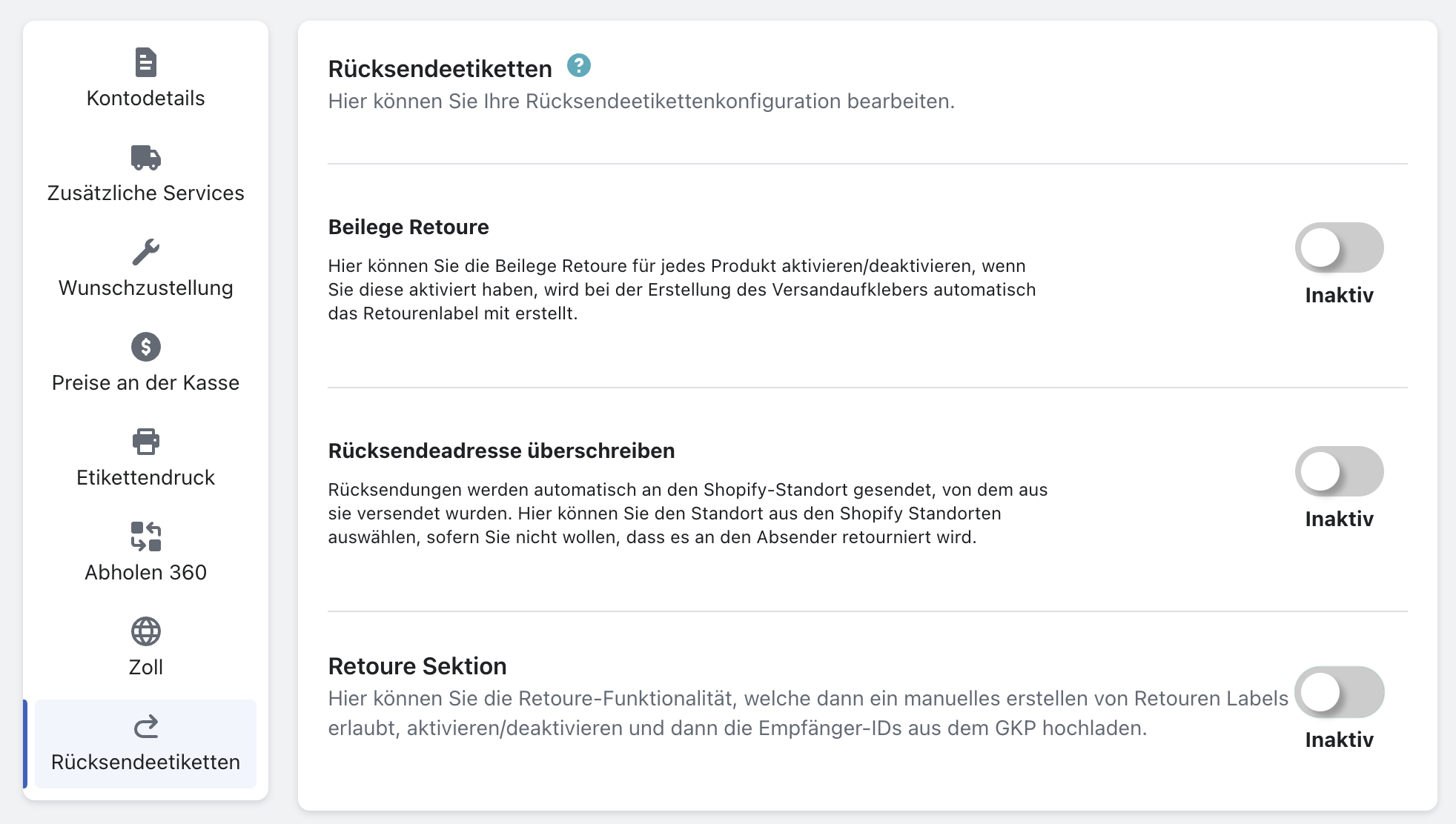
Before you can activate Returns, you must add the product to your participations. See Participations for instructions. Otherwise, the return settings will not be displayed.
Step 4
Select Activate to make this option available to customers.
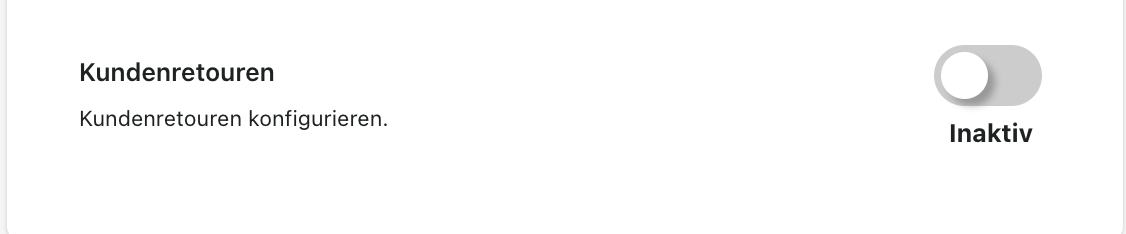
Step 5
After activation, the setting should look like this:
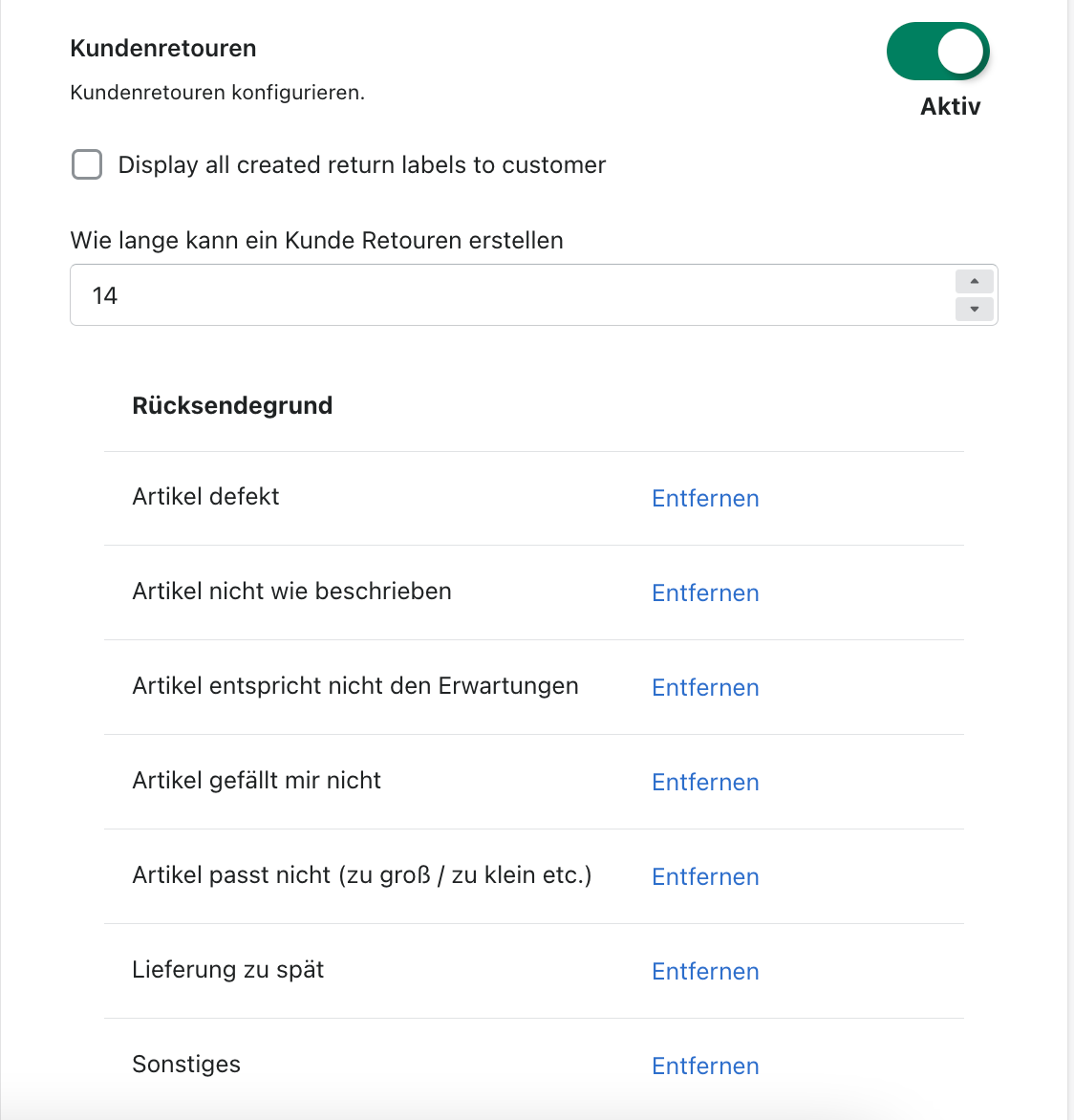
Step 6
Define how many days customers have to create a return label.
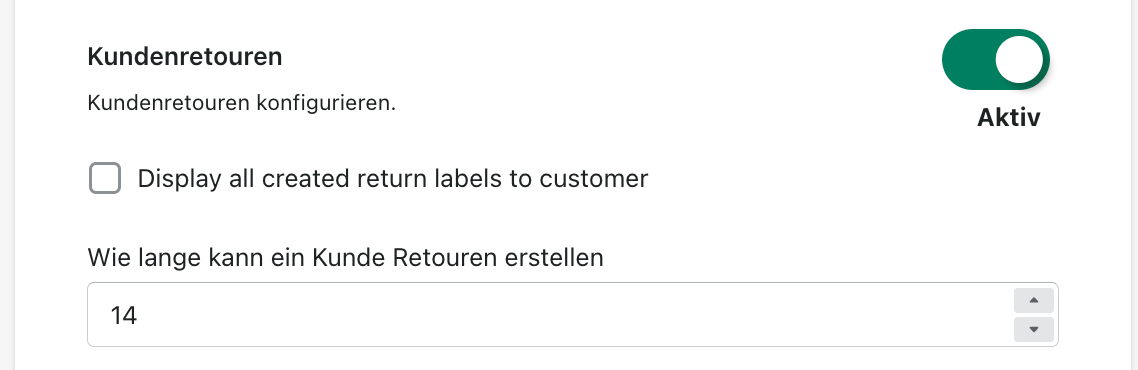
Step 7
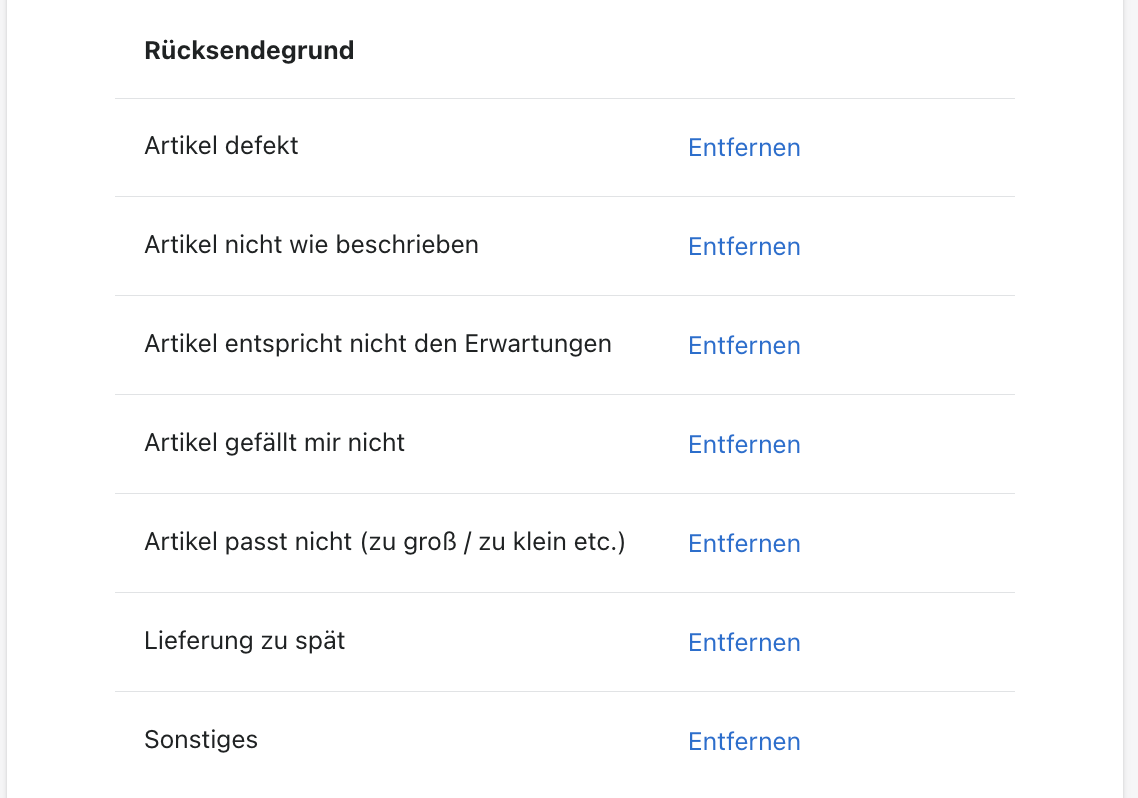
You can also define return reasons by selecting from the predefined options. To delete a selected reason, select Remove.
Step 8
Select Save at the bottom of the page.
Create a return from the customer's perspective
Step 1
Before a customer can create a return label, you must have created the shipping label for the order. The return option will then appear in the customer's checkout.
Step 2
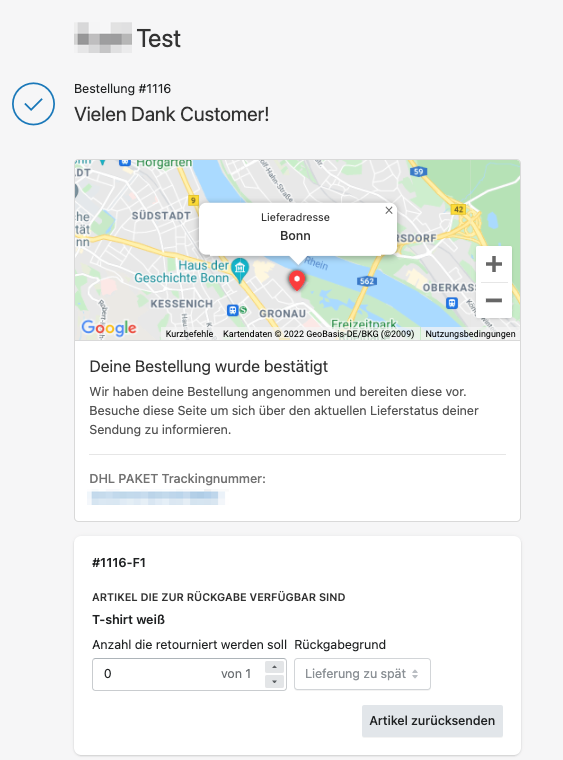
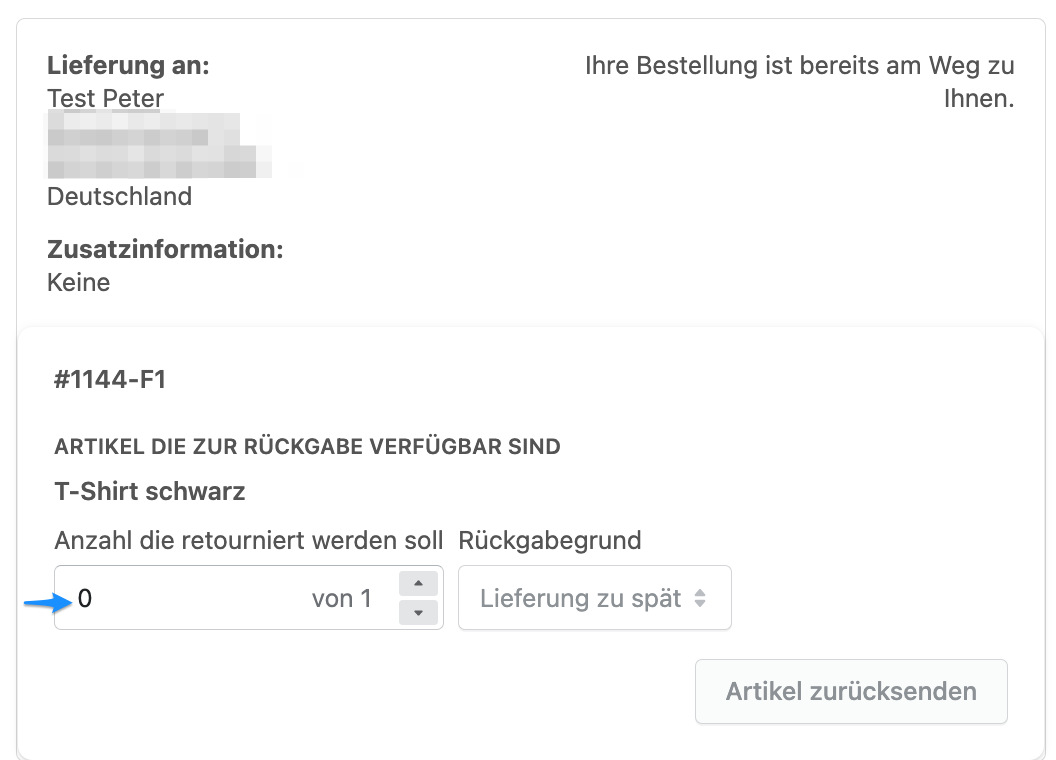
The customer selects the product they want to return.
Step 3
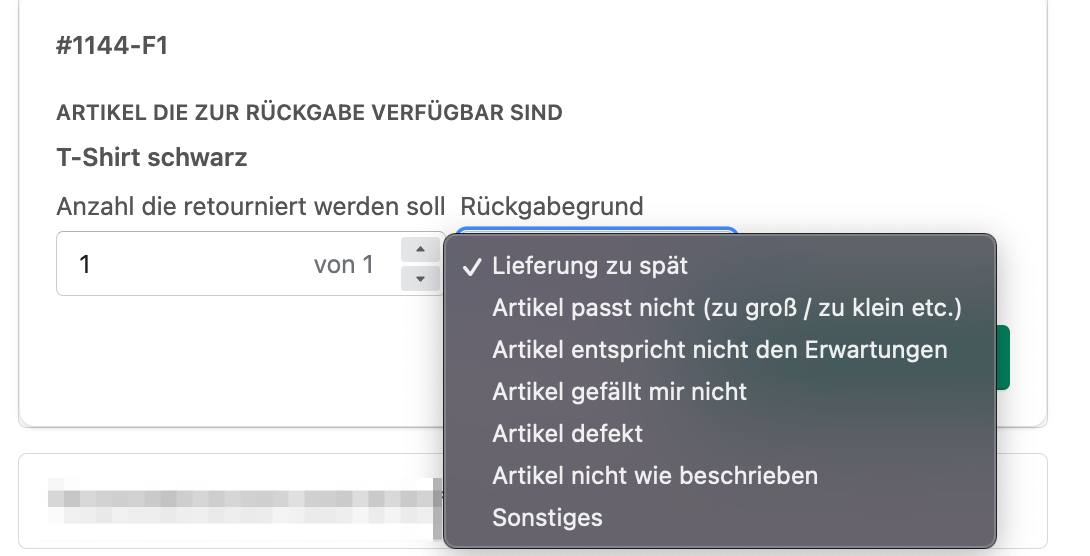
The customer selects a reason for the return.
Step 4
After completing these steps, the customer can create the return label. They must confirm the process once more before the label appears.
Step 5
The return label is then available for download.
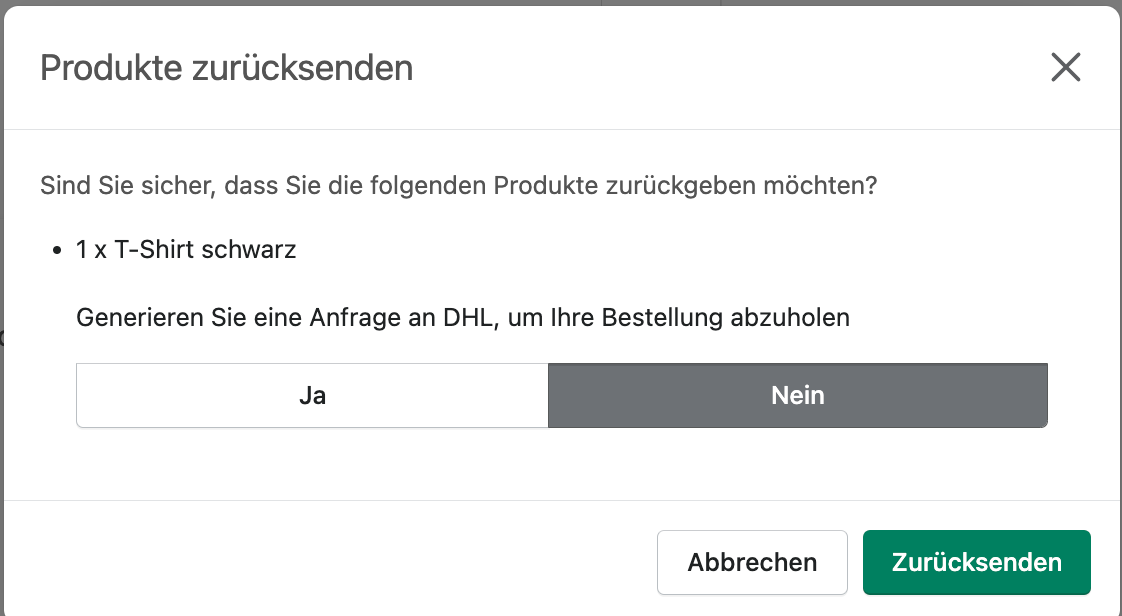
Step 6
The customer's return label looks like the example below:
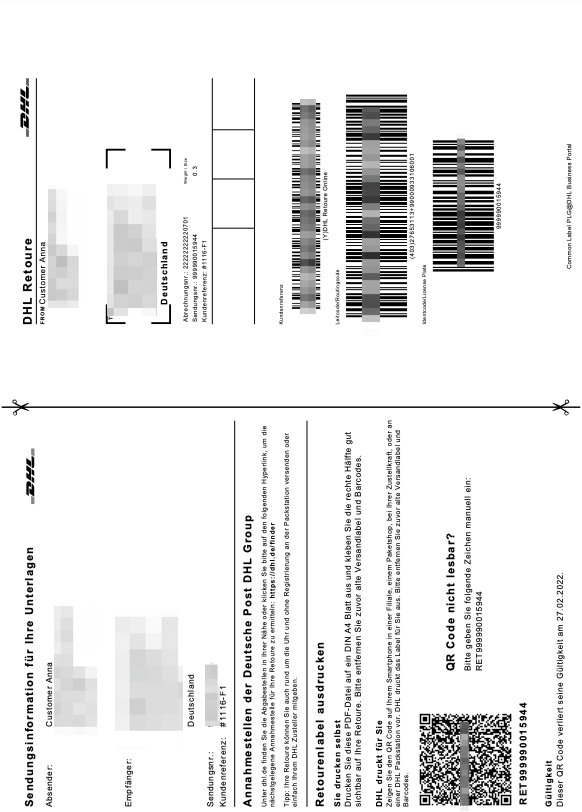
Step 7
The label is also shown in the app. The app displays the date and time at which the customer created the return label, together with the product and return reason.
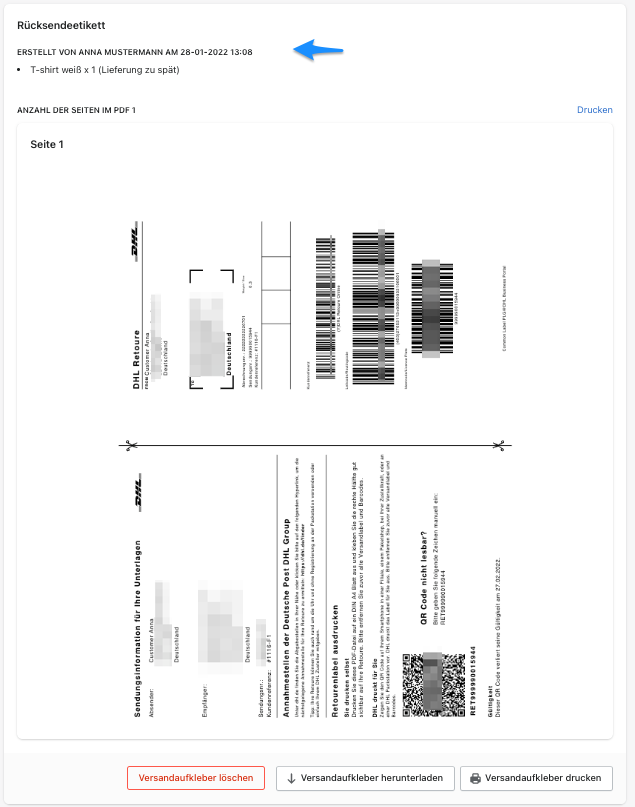
Customer returns overview
Step 1
Go to Apps and open the Post & DHL Shipping app.
Step 2
On the app dashboard, select Customer returns.
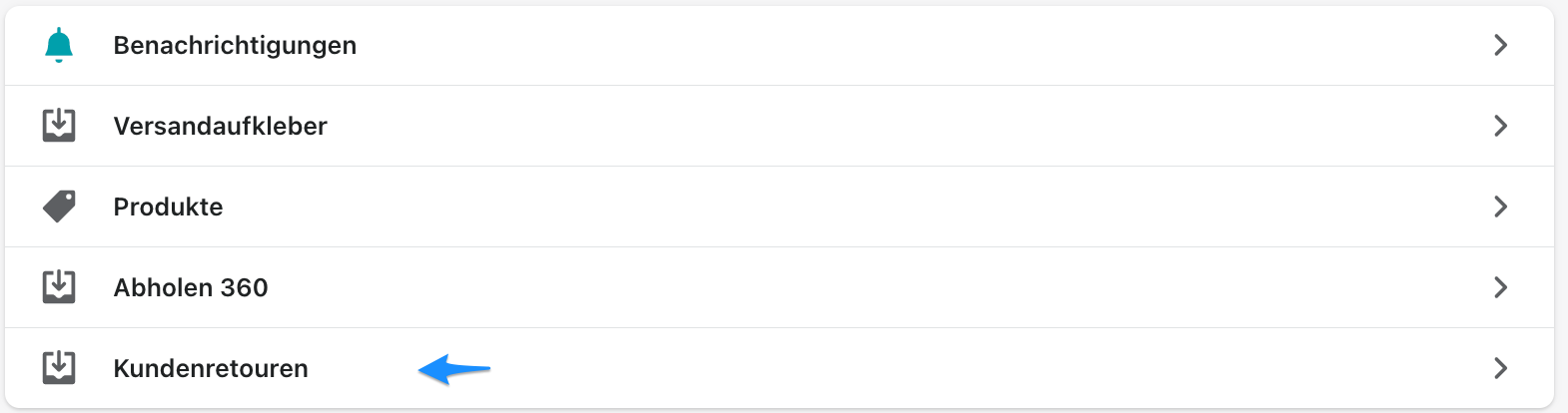
Step 3
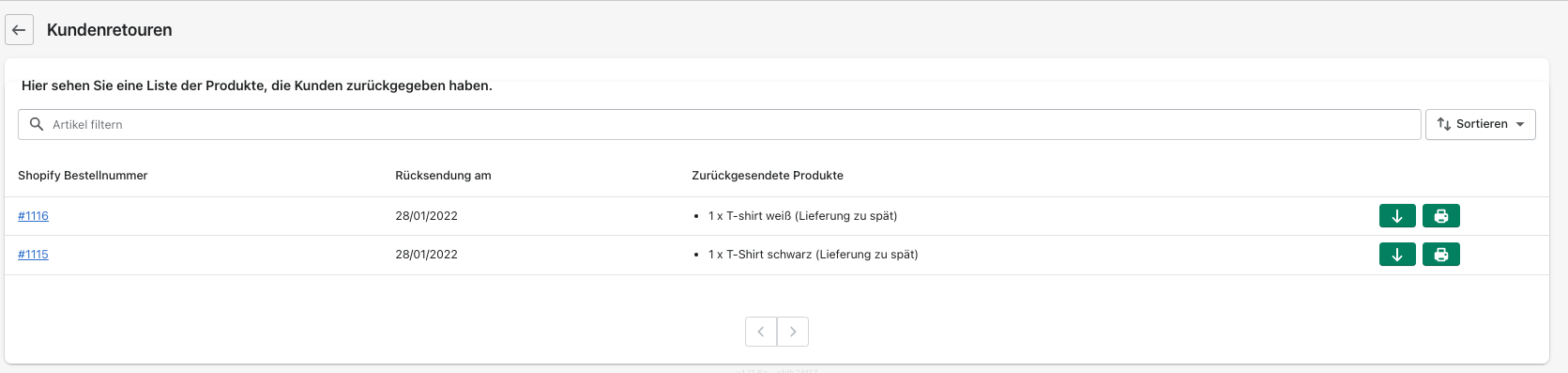
An overview of all customer returns is displayed.
Activate Pickup 360 for customers
Step 1
Go to Apps and open the Post & DHL Shipping app.
Step 2
In the DHL accounts section on the right, select DHL Paket.
Step 3
You can now edit your account. All return settings are available under Return labels.
Step 4
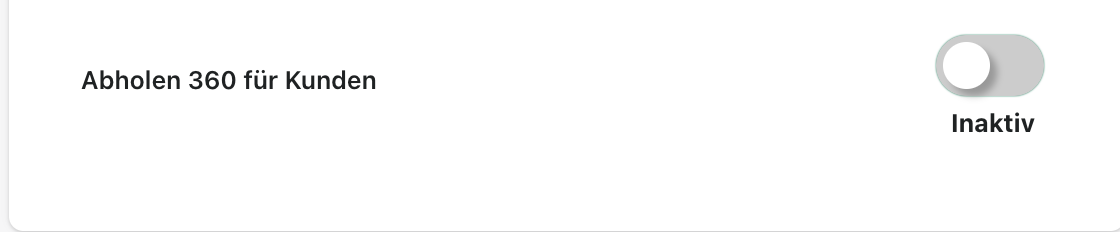
To allow customers to have their shipments collected, select Inactive to activate the feature.
Step 5
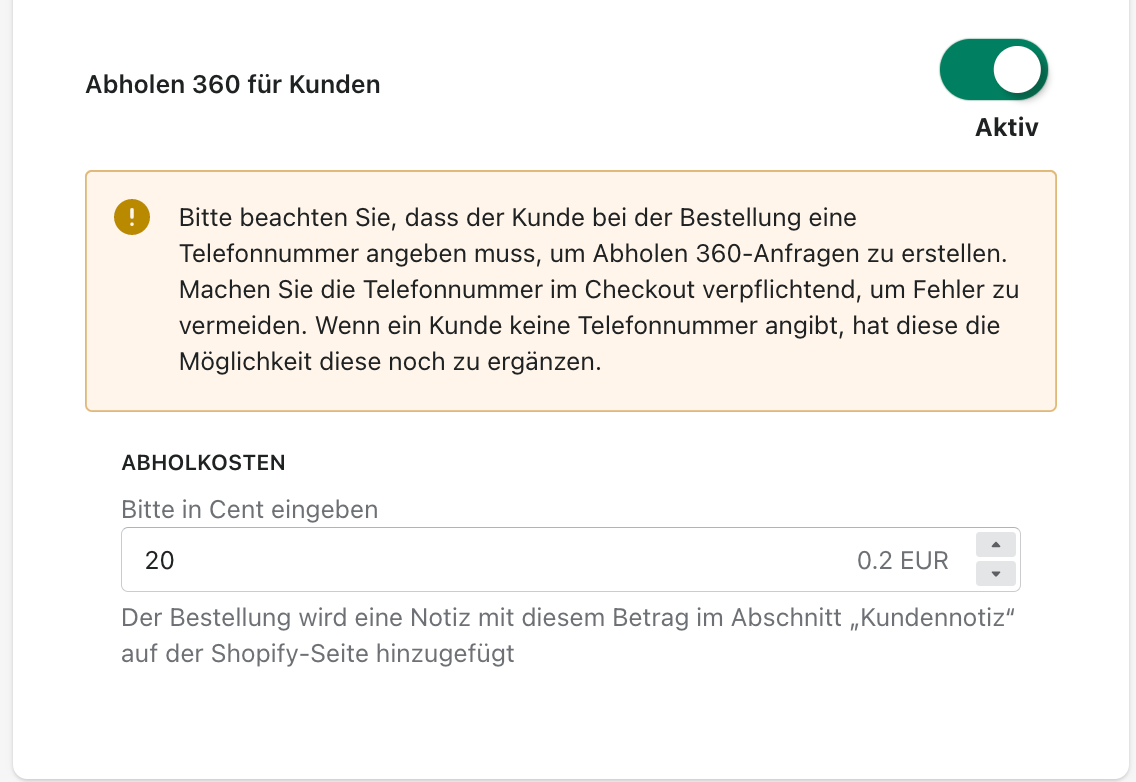
After activating the feature, you can define a collection fee. Enter the amount in cents.
Create a Pickup 360 order from the customer's perspective
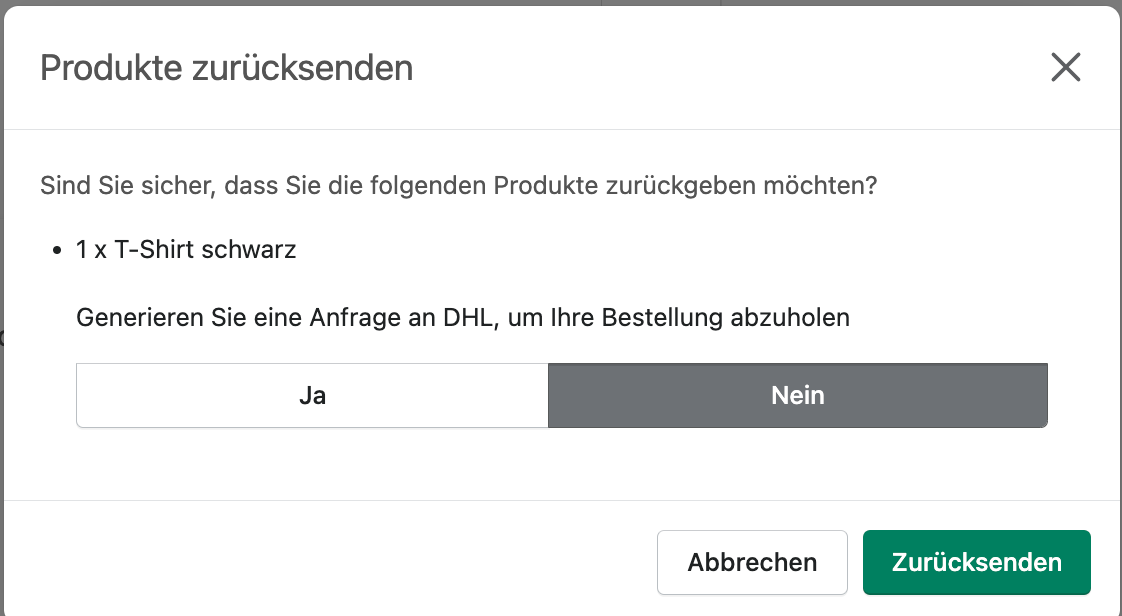
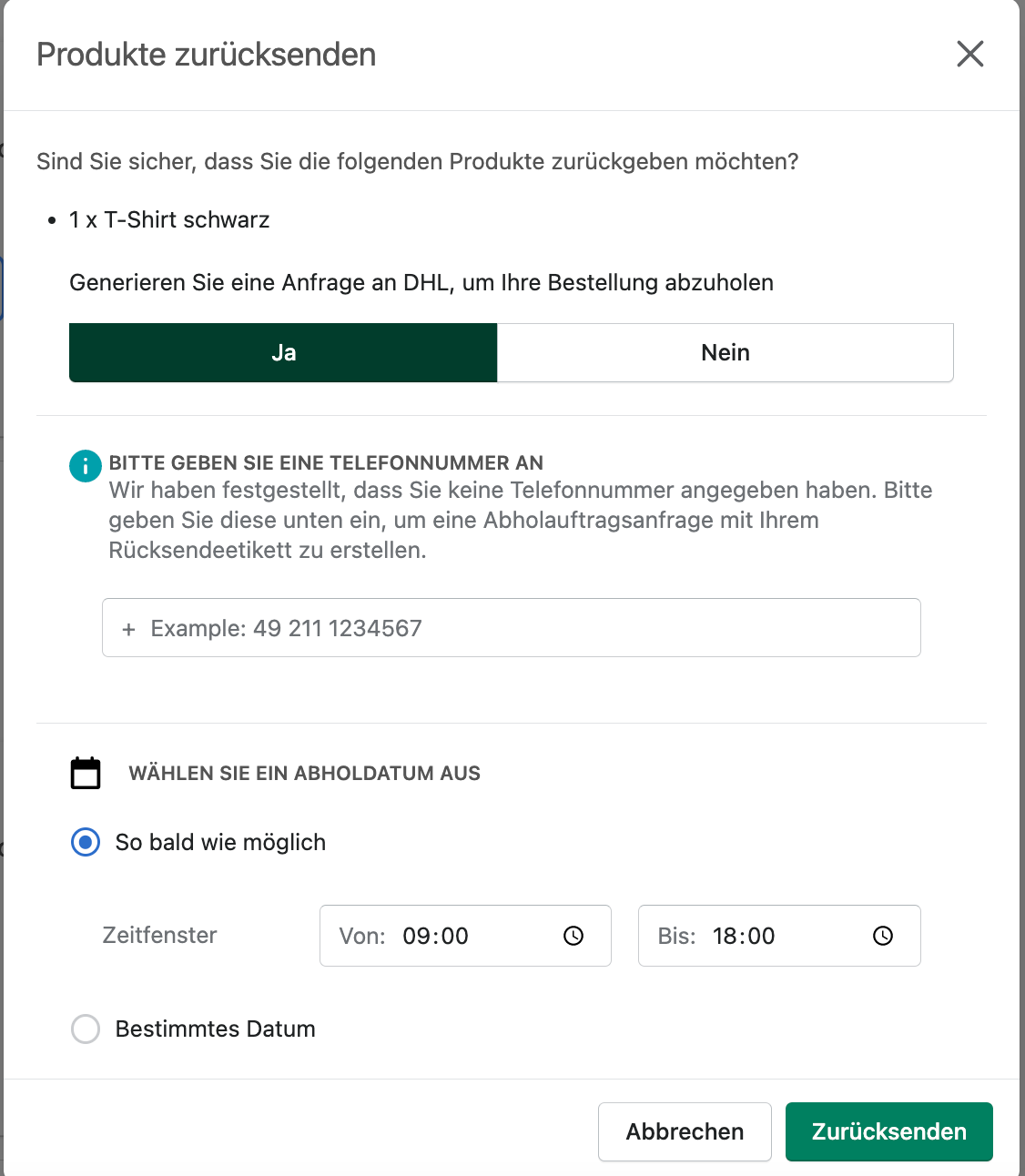
You can let customers request collection of their returns. After selecting the goods to return as described above, the customer selects Yes and submits a collection order.
Customers can select a time window so that the goods are collected as soon as possible.
Customers can also select a specific collection date.
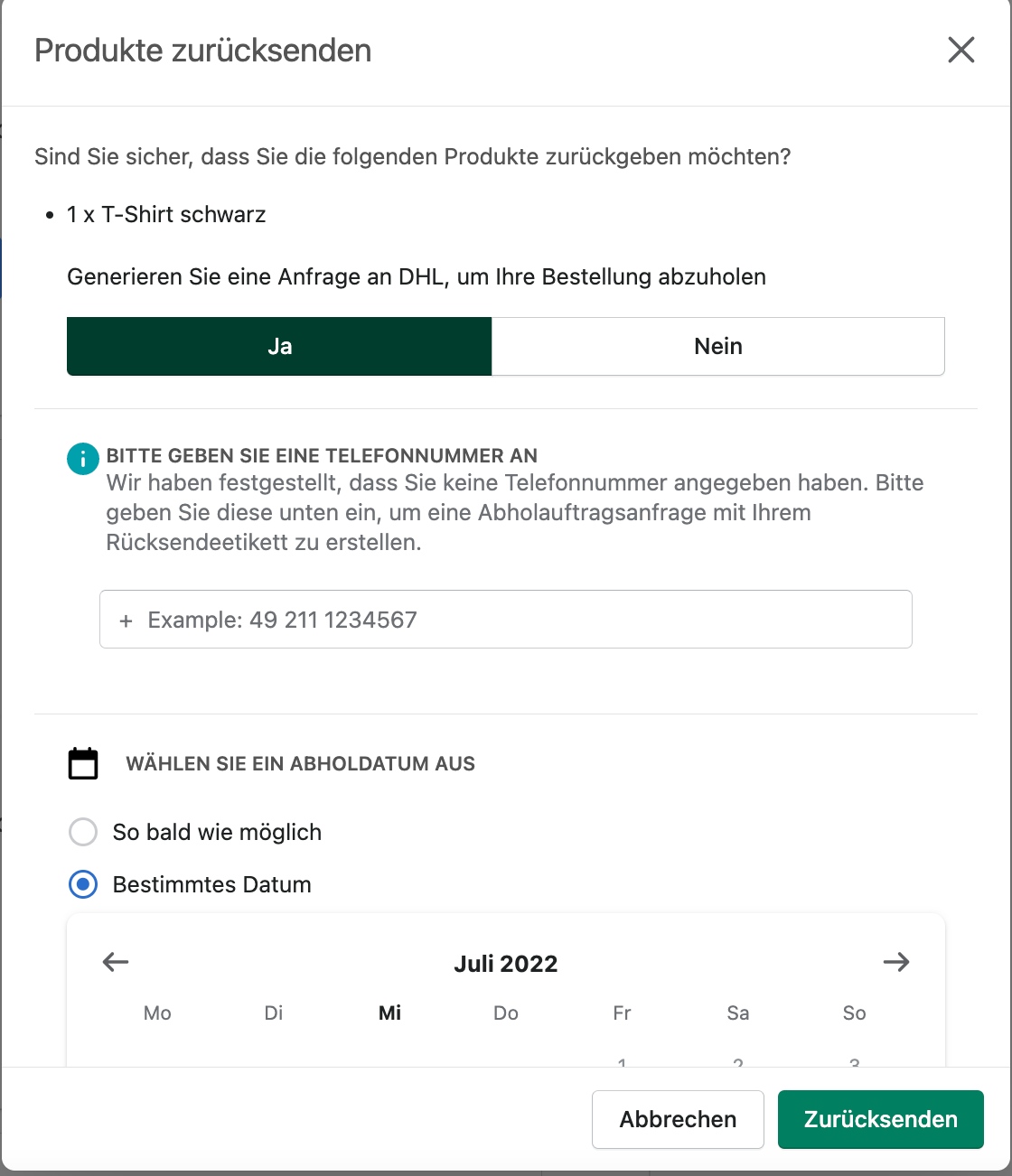
Customers must select Return to complete the process.