International shipping settings
Make sure that the weight, country of origin, HS code, and customs description are completed for every product in a shipment.
This information is required to create customs documents for international shipping. We also recommend storing your VAT identification number in the app as described under Customs information.
Weight, country of origin, HS code, and customs description
The weight is required to select the appropriate shipping method. The HS code identifies and codes the goods using a globally consistent classification. The country of origin and customs description must also be completed.
Step 1
Open Shopify.
Step 2
Select Products.
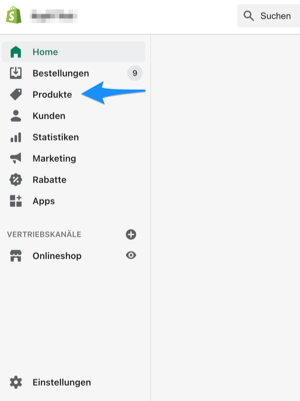
Step 3
Select a product to edit it.
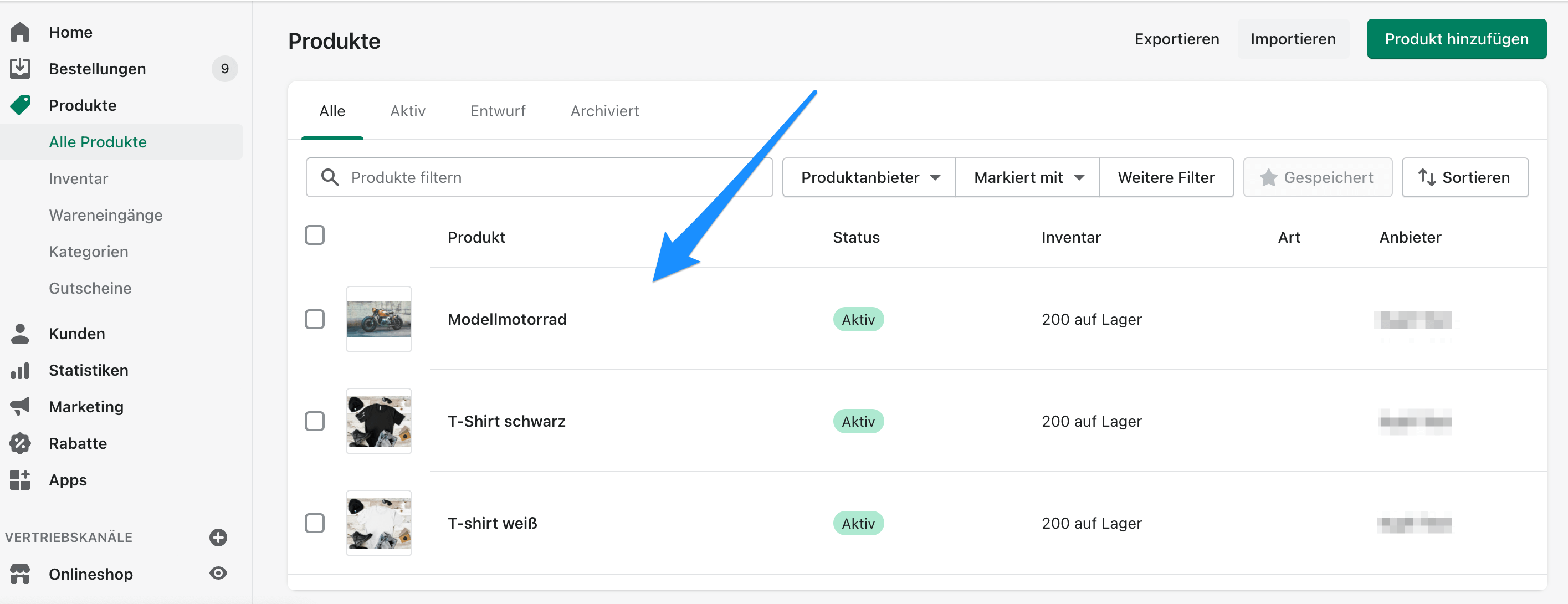
Step 4
In the middle of the page, expand Add customs information to open the international shipping settings.
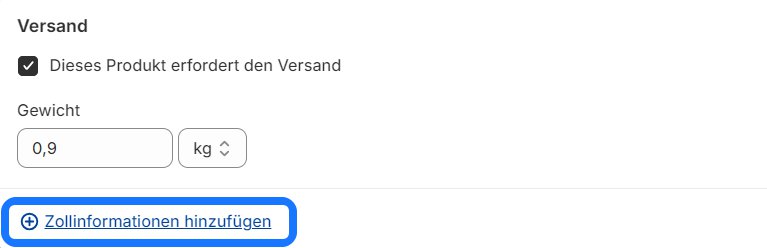
Step 5
Set the weight, HS code, and country of origin.
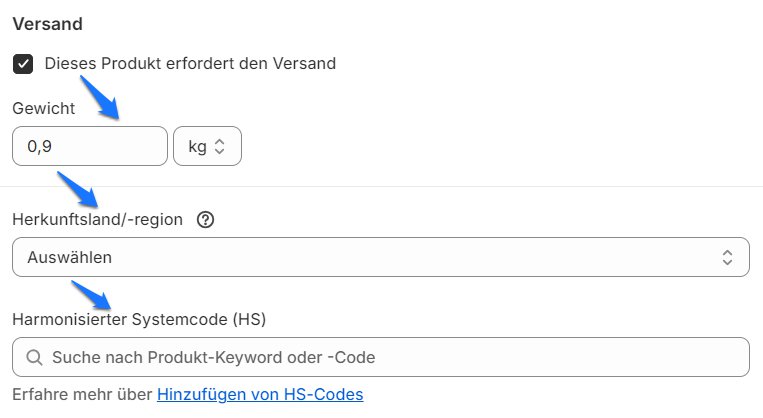
Step 6
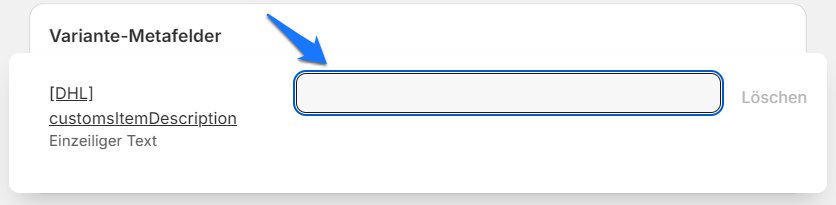
Add the product's customs description in the [DHL] customsItemDescription field.
Step 7
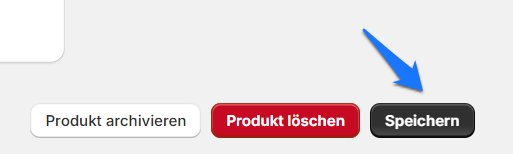
Save the changes as shown below.
Bulk editing
Shopify lets you add HS codes and countries of origin in bulk. See the Shopify bulk editing guide.
Follow these steps to add customs information to several products at once.
Step 1
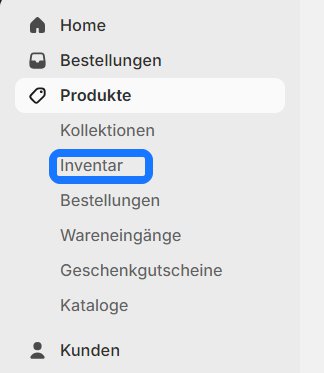
In Shopify, select Products, then select Inventory.
Step 2
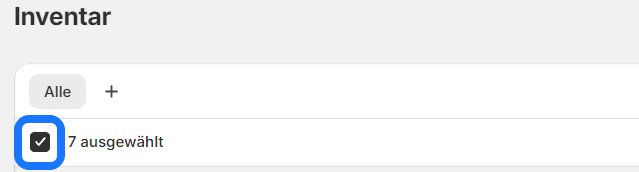
Select all products.
Step 3
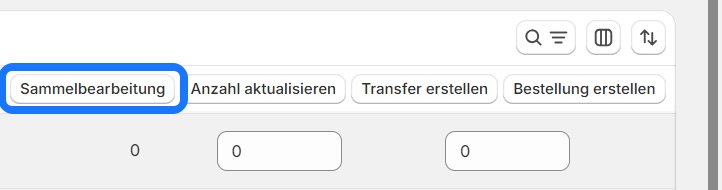
Select Bulk edit.
Step 4
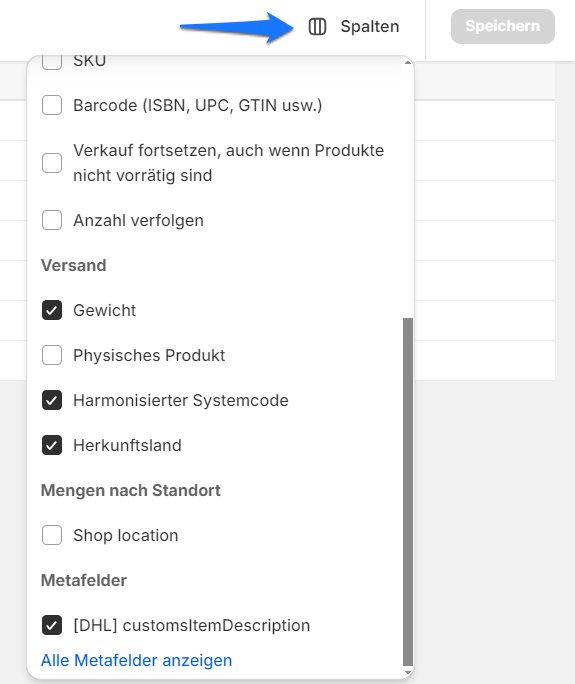
Select Columns in the top-right corner and enable the required fields. You can now edit the weight, country of origin, HS code, and customs description for all products at once.
Step 5
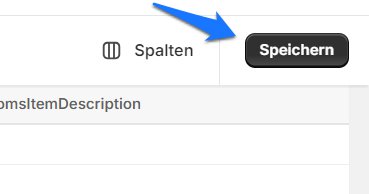
Select Save.
Inventory is only available when inventory tracking is used in Shopify.